
A small n8n receipt automation that saves me time every month — and protects me from my own typos.
Why I Needed This
As an Unipessoal company, I manage my own purchases and spend. A big part of that is expenses: restaurants with clients, transportation, small purchases for the business. Many of these I end up paying with my personal card and then reimbursing myself later.
Keeping track of all these receipts is important, and doing it in an organised way is even more important. Missing one is missing money. Putting the wrong amount in a column is worse, because you only notice it months later when the numbers don’t match.
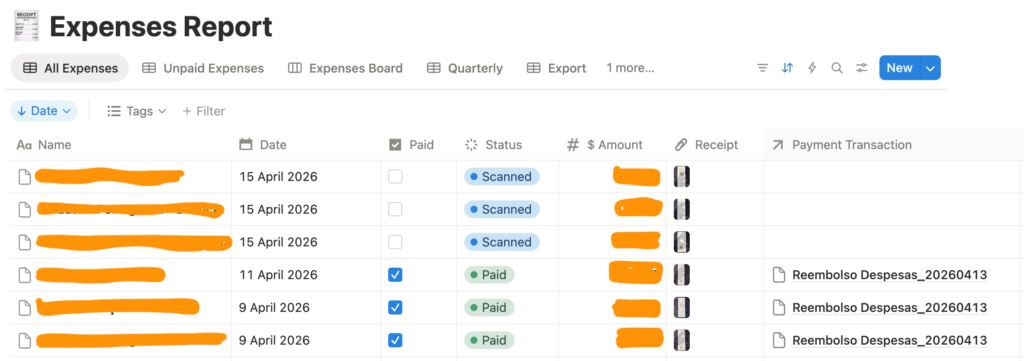
For a long time, I was managing all of this manually. I had a Notion database, uploaded a picture of each receipt, and typed in the details one by one: the establishment, the date, the total amount, the status. It worked. But it was the kind of task that always slipped to the end of the day, then the end of the week, then “I’ll do it on Sunday.”
Three months ago I decided to automate it.
The Idea
The goal was simple: I take a picture of a receipt, upload it through a form, and everything else happens on its own. No typing, no manual classification, no “I’ll organise this later.”
I already had n8n running for other personal automations, so it was the natural tool for the job. I also wanted to keep Notion as the final destination — I like the interface, it’s where I already track everything, and I didn’t want to migrate to a new tool just because I was automating the input.
How the n8n Receipt Automation Works
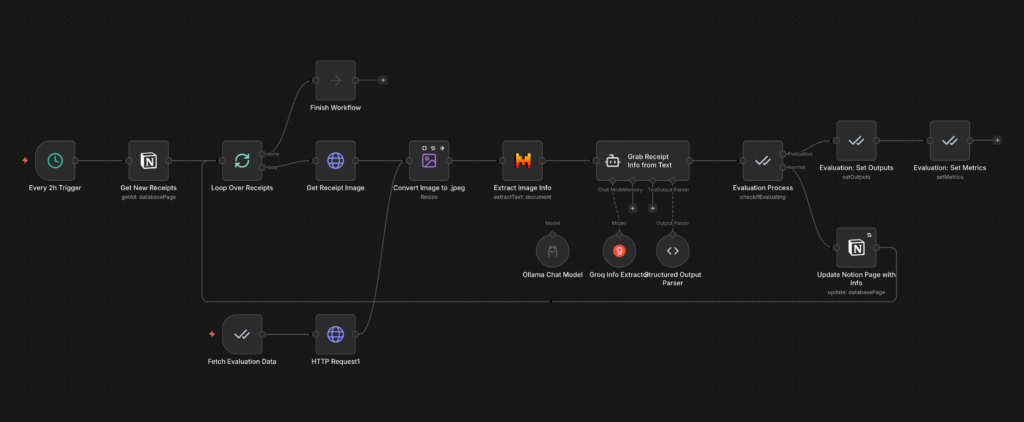
The workflow runs every 2 hours and does the following:
- Fetches new receipts from Notion — it looks at the Expenses Report database and picks up any entry with the status “Created” (the ones I just uploaded the picture for).
- Downloads the receipt image and converts it to
.jpegto make sure the format is consistent. - Extracts the text from the image using Mistral’s OCR. Receipts are often blurry, wrinkled, or in weird angles — good OCR matters here.
- Parses the relevant info with an LLM (I’m using Groq’s
gpt-oss-20b). From the full receipt text, I only want three things: the establishment name, the date, and the total amount. Everything else on the receipt is noise for my use case. - Updates the Notion page with the extracted info and sets the status to “Scanned.”
I also added an evaluation branch in the workflow. I keep a small dataset of receipts with the “correct” expected values, and I can run the workflow against them to check how often the LLM is getting the amount and the date right. This is the part that matters most to me as a data analyst — I don’t want to trust an automation I haven’t measured.
What This Actually Saves Me
Two things.
Time. The obvious one. Typing the same three fields for dozens of receipts a month adds up, and now I don’t do it.
Mistakes. This is the one I care more about. When you’re manually typing amounts from a blurry receipt, it’s very easy to write 19.82 as 18.92, or type the wrong date because you were already thinking about the next receipt. These small errors are almost invisible when they happen, but they compound. The workflow isn’t perfect either — OCR and LLMs can get things wrong too — but the errors are of a different kind, and because I have the evaluation branch, I know roughly how often they happen.
A Few Honest Caveats
This isn’t a magic solution. A few things I’ve learned running this:
- OCR quality depends on the picture quality. If I take a bad photo of a crumpled receipt, the LLM will sometimes invent a number. Taking a decent picture is still on me.
- Some receipts have weird formats. Restaurants with service charges, receipts in multiple languages, tips added by hand — these are edge cases where the LLM can pick the wrong “total.”
- The 2-hour trigger is a trade-off. I don’t need real-time processing, and running every 2 hours keeps my API usage low. For someone who needs immediate results, a webhook-based trigger would make more sense.
Next Steps
A few things I want to add:
- Category classification. Right now the workflow only fills in the basic fields. The next step is to also classify each receipt (food, transportation, office supplies, etc.) so I don’t have to tag them manually.
- A proper evaluation dataset. My current one is small. I want to grow it to a few hundred receipts so I can test different models and prompts and see which one performs best on my specific data.
- A monthly summary. Once the data is cleaner, I want a small dashboard that tells me how much I spent by category, how much is pending reimbursement, and which months are outliers.
If you’re managing your own company expenses manually, I’d really recommend giving something like this a try. You don’t need to be a developer — n8n is drag-and-drop for most of the workflow, and the LLM part is just a well-written prompt. The time investment to build it pays back within the first month.
And if you want me to share the workflow template, let me know — I’m happy to send it over.